Two-factor authentication (2FA) is a critical security mechanism that introduces a second layer of defense to the authentication process, requiring users to provide two distinct forms of identification. This approach not only capitalizes on the conventional password but also incorporates a physical element, usually a mobile device with an authenticator app, which the user must possess. The inclusion of 2FA in security protocols is invaluable for protecting sensitive information from unauthorized access, making it imperative for users to have a mobile device ready to complete this two-step verification.
Hunt advises that all users enable 2FA immediately following registration.
•
Navigate to the Hunt Dashboard
•
From the menu bar on the left-hand side of the screen, scroll down to ACCOUNT > Settings
•
Under Settings, Double-check the correct email address is specified
•
Scroll down to Enable 2FA for Enhanced Security

•
Toggle the switch next to Enable 2FA for Enhanced Security to "on" (green)
•
The Authenticator verification window will be displayed
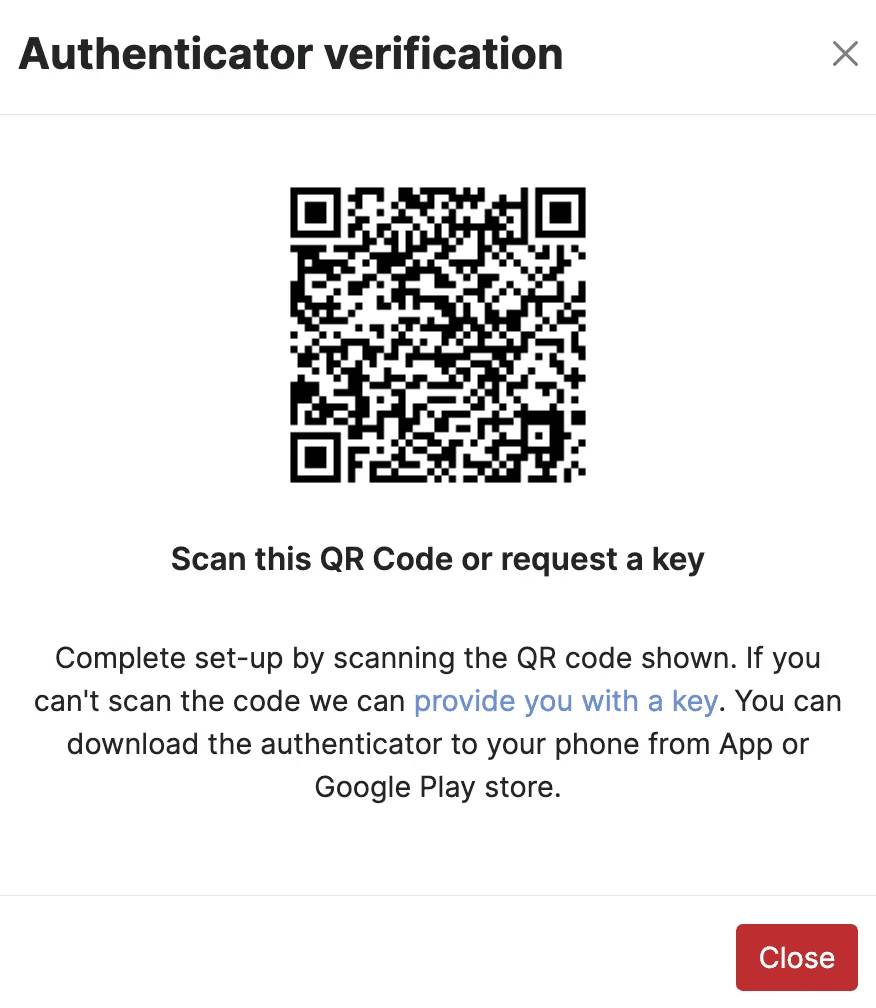
Option 1: Scan the QR code with your mobile device
•
Open the camera app on your mobile device and scan the barcode
•
Click Add Verification Code in Passwords
•
Click Add Verification Code in Passwords
•
Select hunt.io from the password list
•
Click Close on the browser
•
Click Save Changes on the settings screen

Option 2: Add the key to your device manually
•
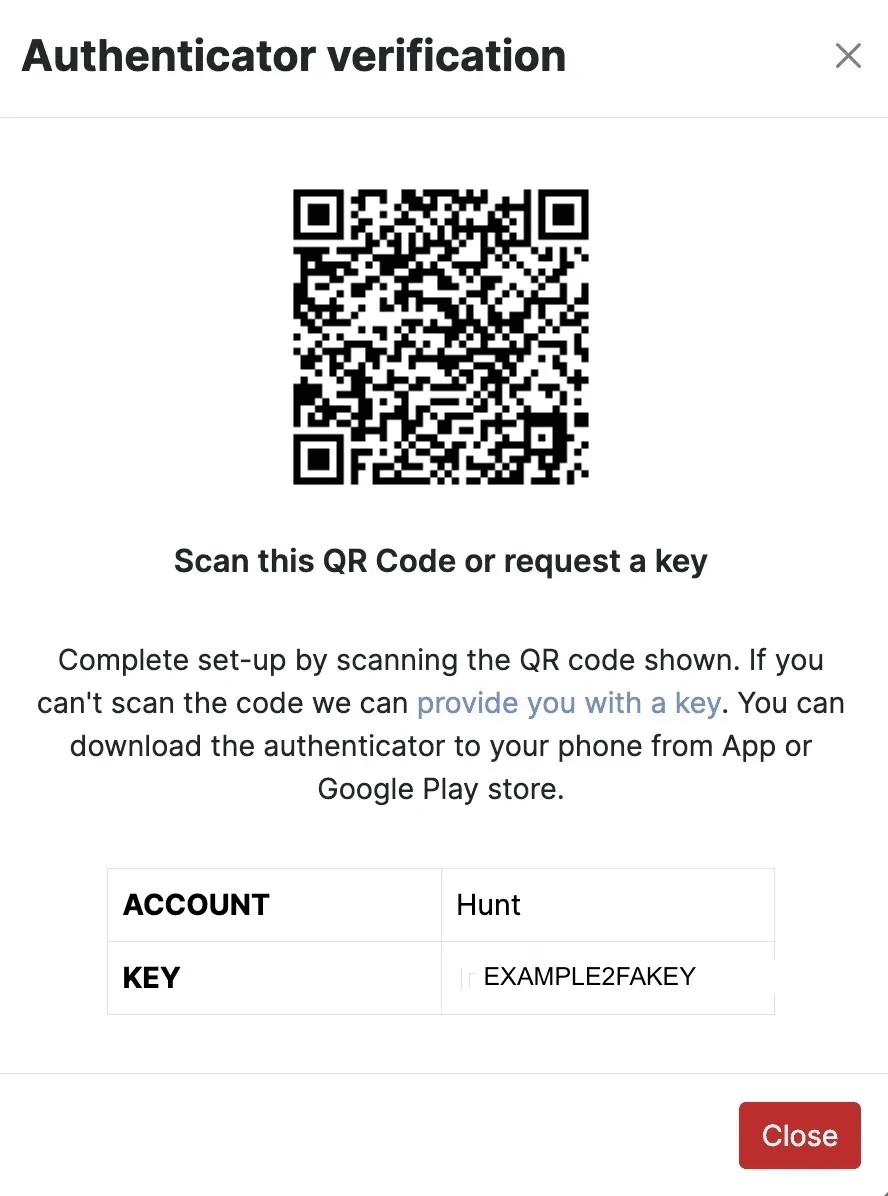
Click provide you with a key below the QR code
•
Below the QR code and instructions, you will now see ACCOUNT and KEY
•
Copy the key on you screen
•
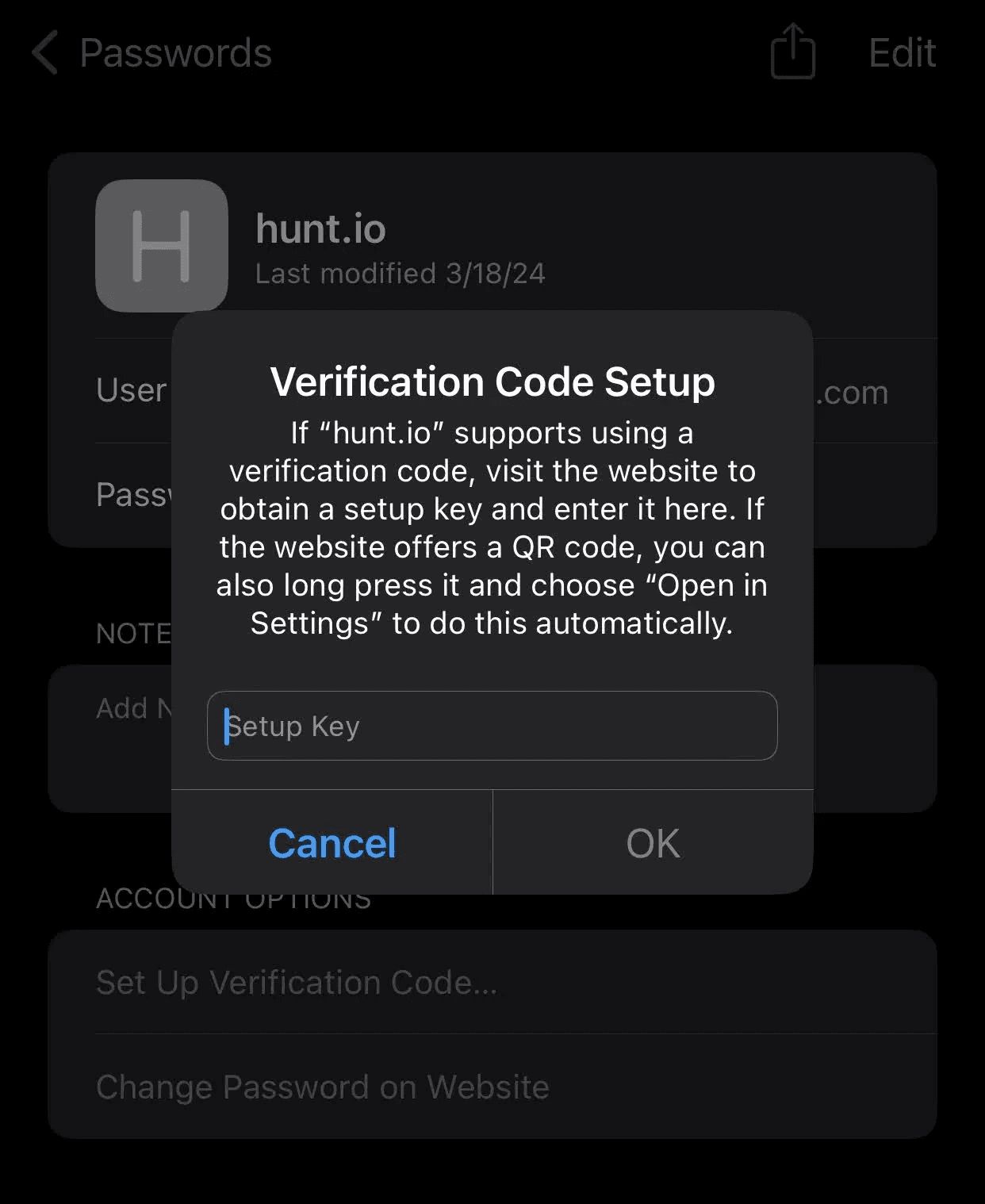
Navigate to your Passwords /Authenticator app on your mobile device
•
Navigate to hunt.io
•
Select Set Up Verification Code
•
Select Enter Setup Key
•
Press Ok to complete 2FA on your mobile device
•
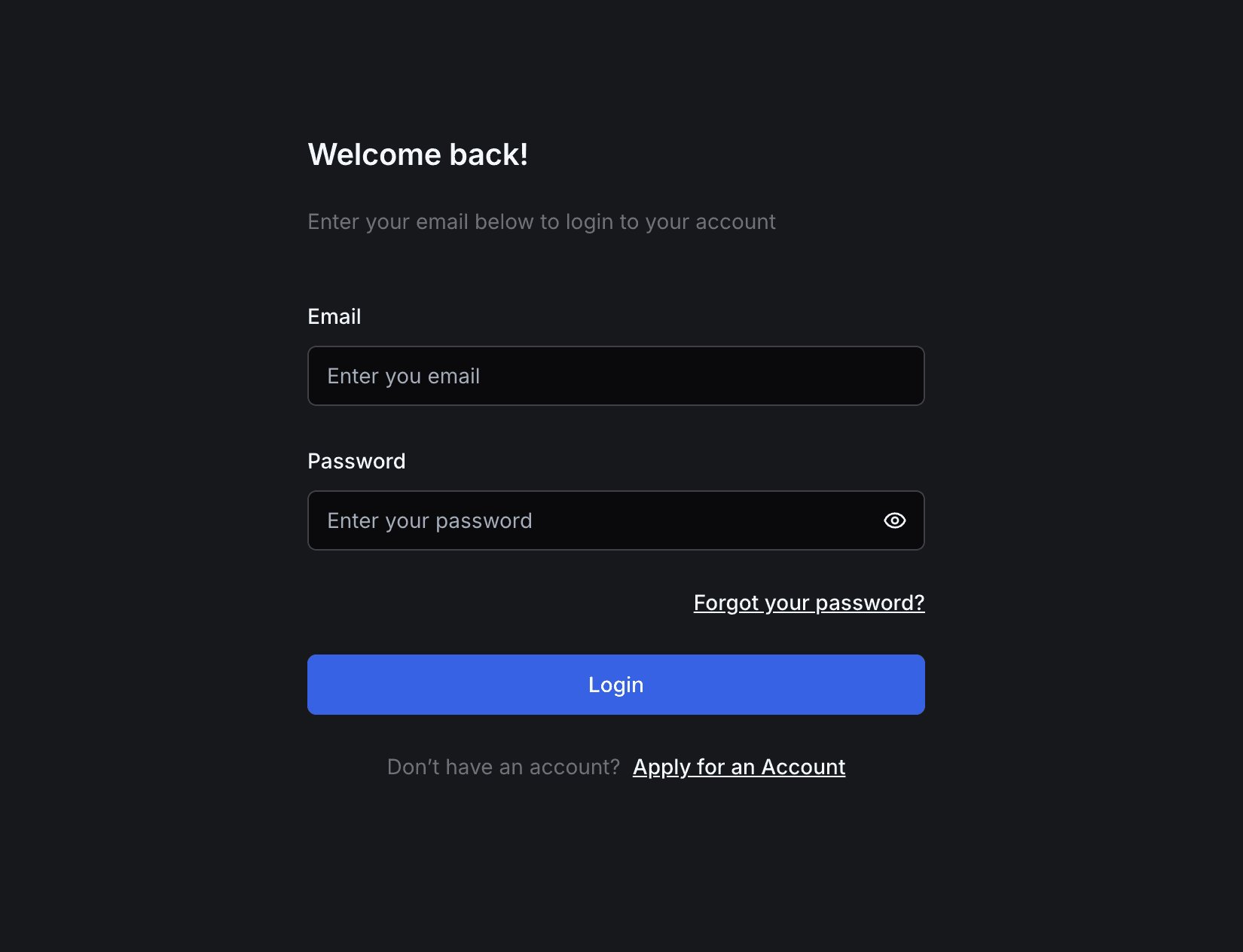
Navigate to https://app.hunt.io/login
•
Enter your email and password, then click Login
•
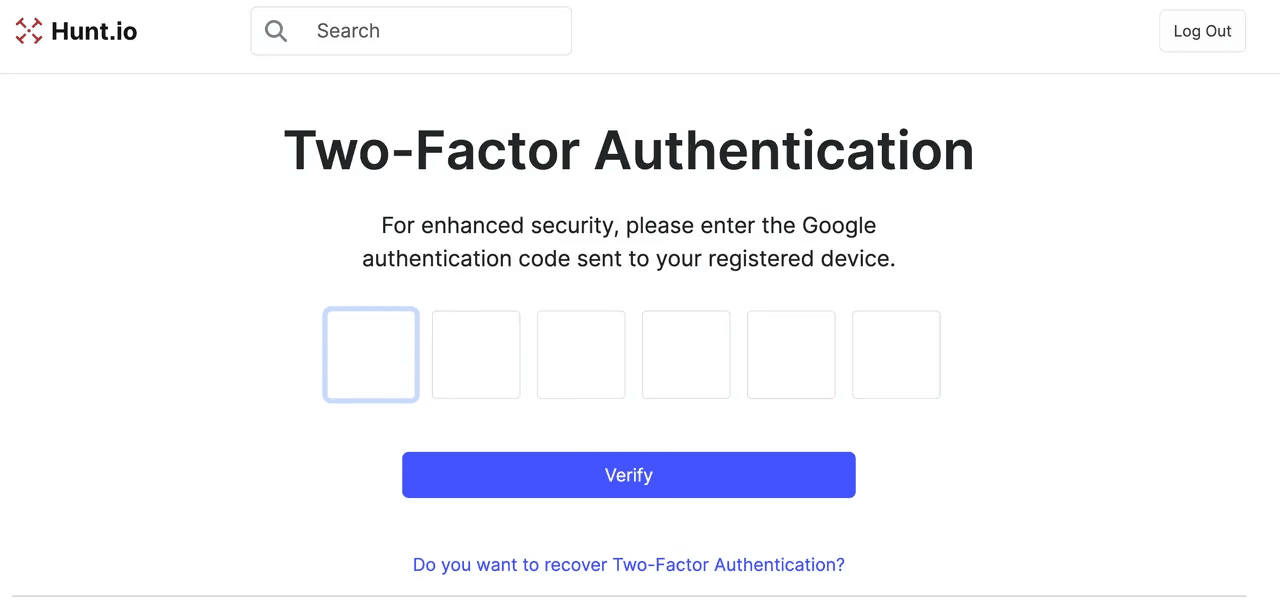
The Two-Factor Authentication screen will be displaye
•
Enter the 6-digit verification code from your device
•
Click Verify once the code has been entered
•
At this point, you will be directed to the Hunt homepage and can navigate as desired
•
If the device that contains the 2FA key becomes lost or is no longer accessible, please contact our support team at contact@hunt.io
•
If you do not have the Google Authenticator App, you can get it for free in the Google Play store
•
Please visit this link for the Google Authenticator App