
Account and Security: Password, 2FA, and Passkeys
Your Account settings are where you secure access to Hunt.io: set a password, turn on two-factor authentication, add a passkey, and review the accounts and devices tied to your login. Turning on a second factor is the single best step you can take right after you first sign in.
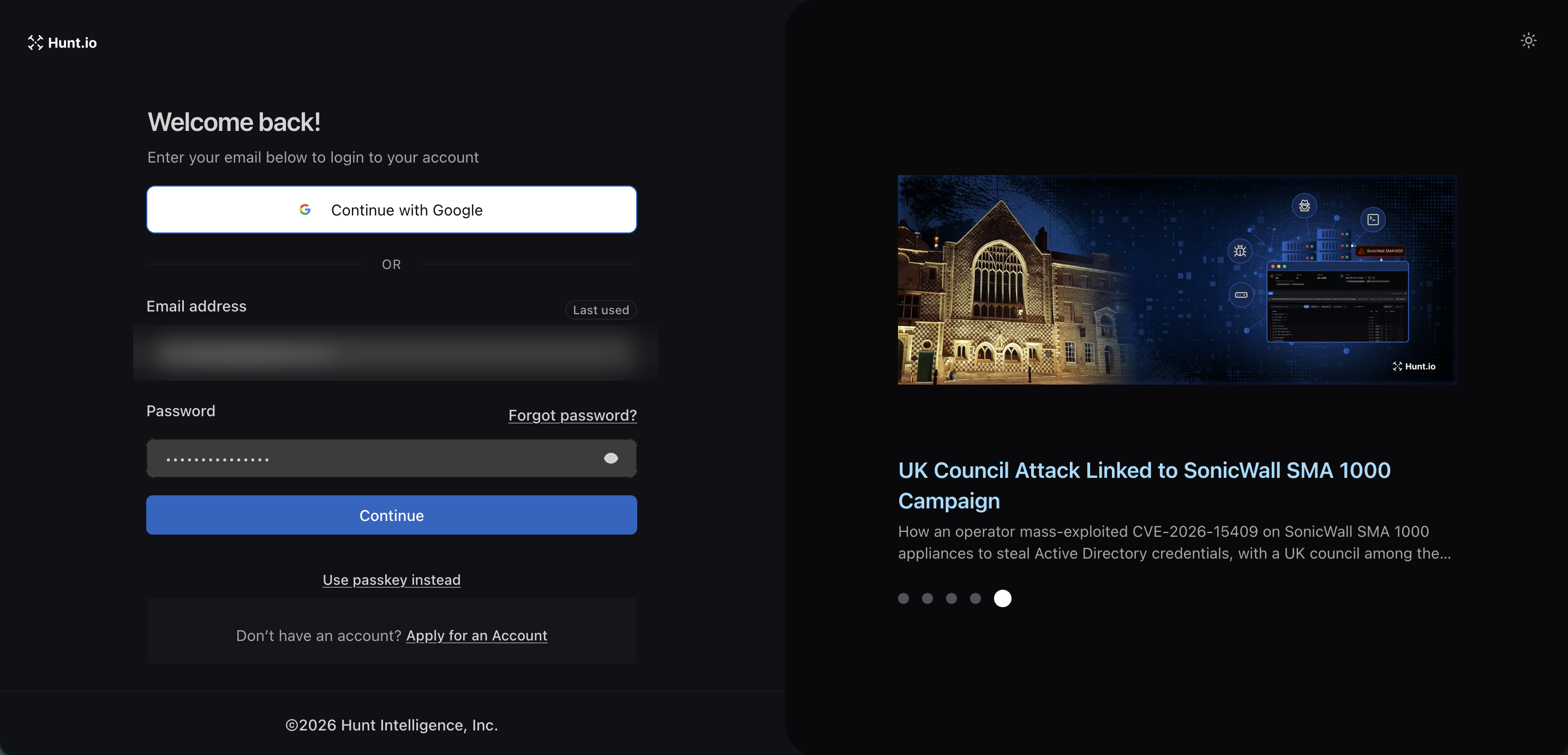
This covers the person-level login. For machine access, see the API keys and MCP Setup. New to the platform? Start at Getting Started, and once you are in, set up your first monitor in Alerts or run a lookup from Search.
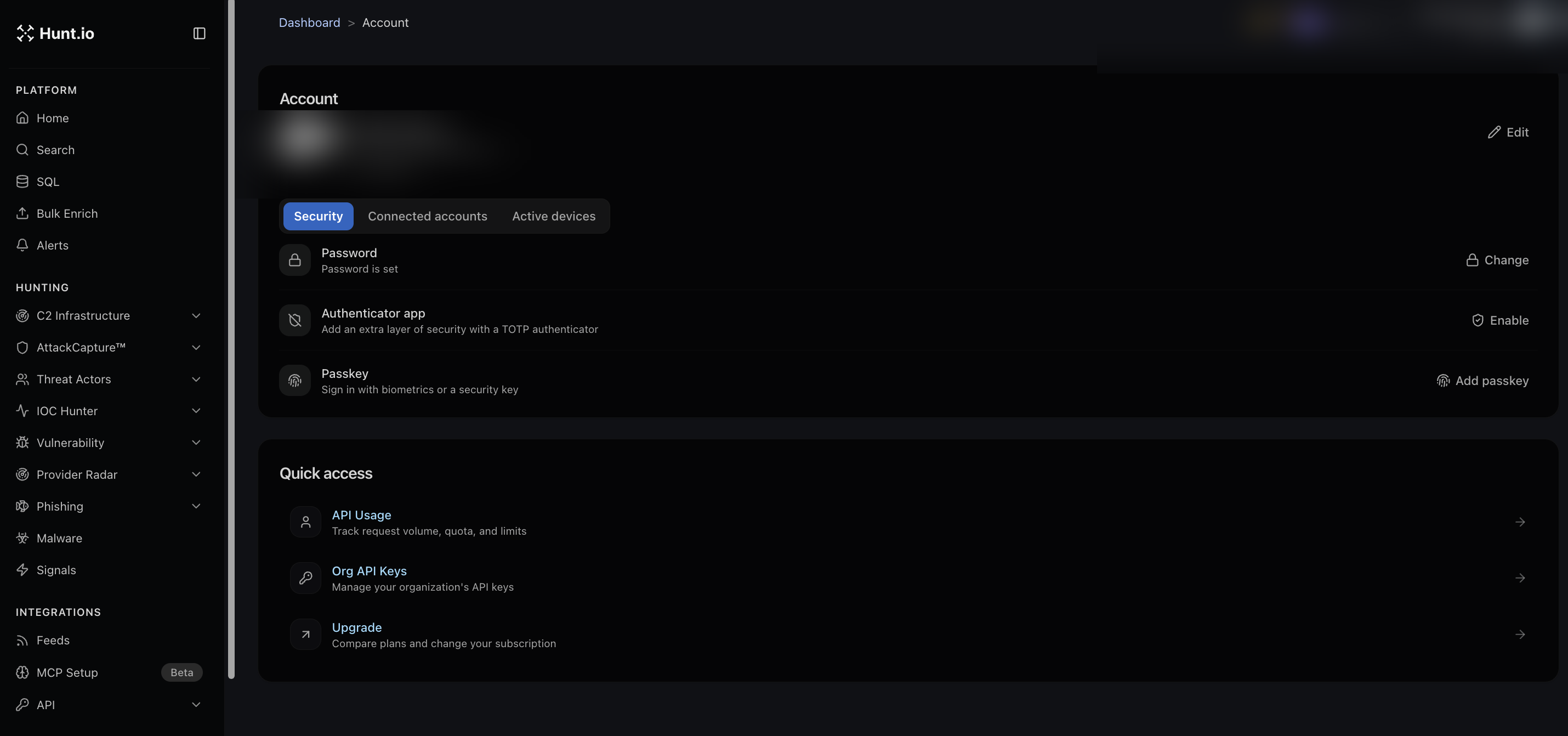
Open Account from the top-right menu. It has three tabs: Security, Connected accounts, and Active devices.
Security
The Security tab lists your sign-in methods:
Password. Shows whether a password is set, with a Change action.
Authenticator app. Add a second layer with a TOTP authenticator. Choose Enable, then scan the code or enter the setup key in any standard authenticator app (Google Authenticator, Authy, 1Password, and others).
Passkey. Sign in with biometrics or a hardware security key. Choose Add passkey to register one.
Connected accounts and active devices
Connected accounts shows the identities linked to your login, such as a Google account used for sign-in.
Active devices lists the devices currently signed in, so you can spot anything you do not recognize.
Quick access
The Account page also links to common destinations: API Usage for request volume and limits, Org API Keys to manage your organization's keys, and Upgrade to compare plans and change your subscription.
Account and Security: Password, 2FA, and Passkeys
Your Account settings are where you secure access to Hunt.io: set a password, turn on two-factor authentication, add a passkey, and review the accounts and devices tied to your login. Turning on a second factor is the single best step you can take right after you first sign in.
This covers the person-level login. For machine access, see the API keys and MCP Setup. New to the platform? Start at Getting Started, and once you are in, set up your first monitor in Alerts or run a lookup from Search.
Open Account from the top-right menu. It has three tabs: Security, Connected accounts, and Active devices.
Security
The Security tab lists your sign-in methods:
Password. Shows whether a password is set, with a Change action.
Authenticator app. Add a second layer with a TOTP authenticator. Choose Enable, then scan the code or enter the setup key in any standard authenticator app (Google Authenticator, Authy, 1Password, and others).
Passkey. Sign in with biometrics or a hardware security key. Choose Add passkey to register one.
Connected accounts and active devices
Connected accounts shows the identities linked to your login, such as a Google account used for sign-in.
Active devices lists the devices currently signed in, so you can spot anything you do not recognize.
Quick access
The Account page also links to common destinations: API Usage for request volume and limits, Org API Keys to manage your organization's keys, and Upgrade to compare plans and change your subscription.
Account and Security: Password, 2FA, and Passkeys
Your Account settings are where you secure access to Hunt.io: set a password, turn on two-factor authentication, add a passkey, and review the accounts and devices tied to your login. Turning on a second factor is the single best step you can take right after you first sign in.
This covers the person-level login. For machine access, see the API keys and MCP Setup. New to the platform? Start at Getting Started, and once you are in, set up your first monitor in Alerts or run a lookup from Search.
Open Account from the top-right menu. It has three tabs: Security, Connected accounts, and Active devices.
Security
The Security tab lists your sign-in methods:
Password. Shows whether a password is set, with a Change action.
Authenticator app. Add a second layer with a TOTP authenticator. Choose Enable, then scan the code or enter the setup key in any standard authenticator app (Google Authenticator, Authy, 1Password, and others).
Passkey. Sign in with biometrics or a hardware security key. Choose Add passkey to register one.
Connected accounts and active devices
Connected accounts shows the identities linked to your login, such as a Google account used for sign-in.
Active devices lists the devices currently signed in, so you can spot anything you do not recognize.
Quick access
The Account page also links to common destinations: API Usage for request volume and limits, Org API Keys to manage your organization's keys, and Upgrade to compare plans and change your subscription.
Frequently asked questions
Frequently asked questions
Which authenticator apps work?
How do I turn on two-factor authentication in Hunt.io?
How do I turn on two-factor authentication in Hunt.io?
How do I see what is signed in to my account?
What is a passkey?
Related
Related
Hunt adversary infrastructure in real time. Surface C2 servers, enrich IOCs,
and map attacker activity at scale with our unified threat hunting platform.

Hunt adversary infrastructure in real time. Surface C2 servers, enrich IOCs,
and map attacker activity at scale with our unified threat hunting platform.
Hunt adversary infrastructure in real time. Surface C2 servers, enrich IOCs,
and map attacker activity at scale with our unified threat hunting platform.