
Alerts: Monitors for Queries, Actors, and AttackCapture
Alerts turn a one-off search into standing coverage. You save a monitor, Hunt.io re-runs it on a schedule, and anything new is marked so you notice it. Monitors sync to your account, so they follow you across devices.
A monitor can watch a HuntSQL query, a Threat Actor you track, or an AttackCapture search. It is the standing-coverage layer over the same things you look up by hand in Search and browse in C2 Infrastructure. If you are setting up for the first time, see Getting Started.
Open Alerts from the Platform group in the sidebar.
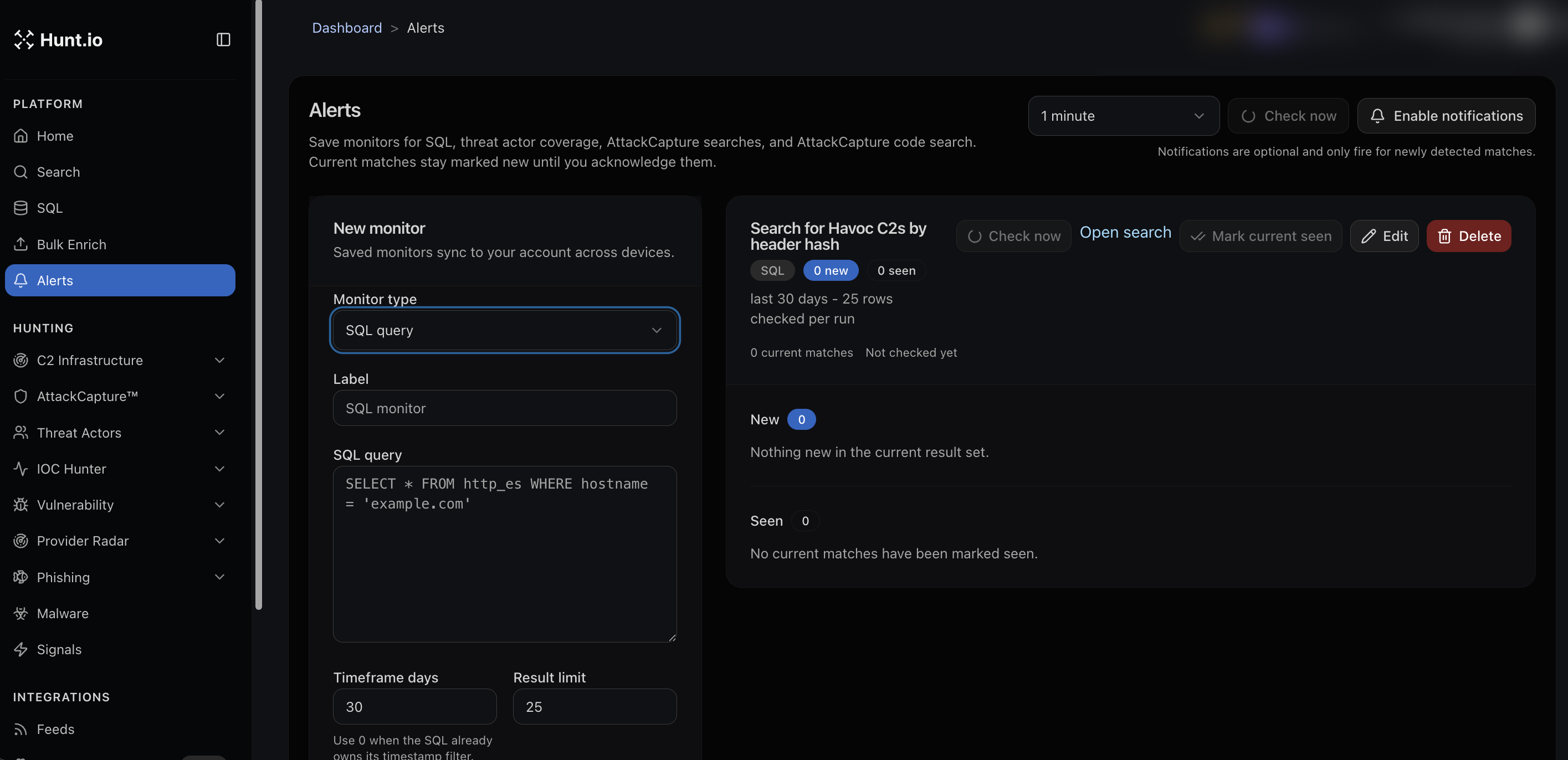
Monitor types
You can monitor several kinds of query:
SQL query: a saved HuntSQL query. New rows in the result set get flagged.
Threat actor coverage: changes tied to a tracked actor.
AttackCapture searches: new open directory hosts that match a saved search.
AttackCapture code search: new files whose content matches a saved code query.
Create a monitor
In the New monitor panel:
Pick a Monitor type.
Give it a Label so you recognize it later.
Enter the query. For a SQL monitor, paste the query, for example
SELECT * FROM http_es WHERE hostname = 'example.com'.Set Timeframe days and Result limit. Use a timeframe of 0 when the query already filters by time itself.
Save it, and it starts running on the check interval you choose at the top of the page.
Work your matches
Each monitor shows its last run, how many rows it checks per run, and three states:
New for matches you have not looked at yet.
Seen for matches you have acknowledged with Mark current seen.
Current match totals and when it last ran.
Use Check now to run a monitor on demand, Open search to jump to the full results, Edit to change it, and Enable notifications to get told about new matches. Notifications only fire for newly detected matches, so you are not re-alerted on things you already handled.
Alerts: Monitors for Queries, Actors, and AttackCapture
Alerts turn a one-off search into standing coverage. You save a monitor, Hunt.io re-runs it on a schedule, and anything new is marked so you notice it. Monitors sync to your account, so they follow you across devices.
A monitor can watch a HuntSQL query, a Threat Actor you track, or an AttackCapture search. It is the standing-coverage layer over the same things you look up by hand in Search and browse in C2 Infrastructure. If you are setting up for the first time, see Getting Started.
Open Alerts from the Platform group in the sidebar.
Monitor types
You can monitor several kinds of query:
SQL query: a saved HuntSQL query. New rows in the result set get flagged.
Threat actor coverage: changes tied to a tracked actor.
AttackCapture searches: new open directory hosts that match a saved search.
AttackCapture code search: new files whose content matches a saved code query.
Create a monitor
In the New monitor panel:
Pick a Monitor type.
Give it a Label so you recognize it later.
Enter the query. For a SQL monitor, paste the query, for example
SELECT * FROM http_es WHERE hostname = 'example.com'.Set Timeframe days and Result limit. Use a timeframe of 0 when the query already filters by time itself.
Save it, and it starts running on the check interval you choose at the top of the page.
Work your matches
Each monitor shows its last run, how many rows it checks per run, and three states:
New for matches you have not looked at yet.
Seen for matches you have acknowledged with Mark current seen.
Current match totals and when it last ran.
Use Check now to run a monitor on demand, Open search to jump to the full results, Edit to change it, and Enable notifications to get told about new matches. Notifications only fire for newly detected matches, so you are not re-alerted on things you already handled.
Alerts: Monitors for Queries, Actors, and AttackCapture
Alerts turn a one-off search into standing coverage. You save a monitor, Hunt.io re-runs it on a schedule, and anything new is marked so you notice it. Monitors sync to your account, so they follow you across devices.
A monitor can watch a HuntSQL query, a Threat Actor you track, or an AttackCapture search. It is the standing-coverage layer over the same things you look up by hand in Search and browse in C2 Infrastructure. If you are setting up for the first time, see Getting Started.
Open Alerts from the Platform group in the sidebar.
Monitor types
You can monitor several kinds of query:
SQL query: a saved HuntSQL query. New rows in the result set get flagged.
Threat actor coverage: changes tied to a tracked actor.
AttackCapture searches: new open directory hosts that match a saved search.
AttackCapture code search: new files whose content matches a saved code query.
Create a monitor
In the New monitor panel:
Pick a Monitor type.
Give it a Label so you recognize it later.
Enter the query. For a SQL monitor, paste the query, for example
SELECT * FROM http_es WHERE hostname = 'example.com'.Set Timeframe days and Result limit. Use a timeframe of 0 when the query already filters by time itself.
Save it, and it starts running on the check interval you choose at the top of the page.
Work your matches
Each monitor shows its last run, how many rows it checks per run, and three states:
New for matches you have not looked at yet.
Seen for matches you have acknowledged with Mark current seen.
Current match totals and when it last ran.
Use Check now to run a monitor on demand, Open search to jump to the full results, Edit to change it, and Enable notifications to get told about new matches. Notifications only fire for newly detected matches, so you are not re-alerted on things you already handled.
Frequently asked questions
Frequently asked questions
Do monitors notify me automatically?
Do my monitors follow me across devices?
How do I stop seeing the same match as new?
What can I monitor in Hunt.io?
Related
Related
Hunt adversary infrastructure in real time. Surface C2 servers, enrich IOCs,
and map attacker activity at scale with our unified threat hunting platform.

Hunt adversary infrastructure in real time. Surface C2 servers, enrich IOCs,
and map attacker activity at scale with our unified threat hunting platform.
Hunt adversary infrastructure in real time. Surface C2 servers, enrich IOCs,
and map attacker activity at scale with our unified threat hunting platform.