
AttackCapture: Hunt Malicious Open Directories and Tooling
AttackCapture is Hunt.io's open directory intelligence. Attackers routinely leave their staging servers exposed, and those open directories hold malware, loaders, C2 profiles, exploit kits, and recon tooling. AttackCapture collects that content, flags the hosts that look malicious, and lets you search inside the files themselves.
This is the feature the old docs called Open Directory. It pairs closely with the rest of the platform: a captured host often maps to a C2 Infrastructure server or a known Malware family, carries CVE tags you can follow into Vulnerability, and shows up in IOC Hunter reporting. Save a search as a monitor in Alerts, or open any host in Search to pivot.
Open AttackCapture from the Hunting group in the sidebar. It has these sub-sections: Overview, Attack Reports, Listing, Starred, Explore, Code Search, and Exploit Capture.
Listing
Direct URL: portal.hunt.io/attackcapture/listing.
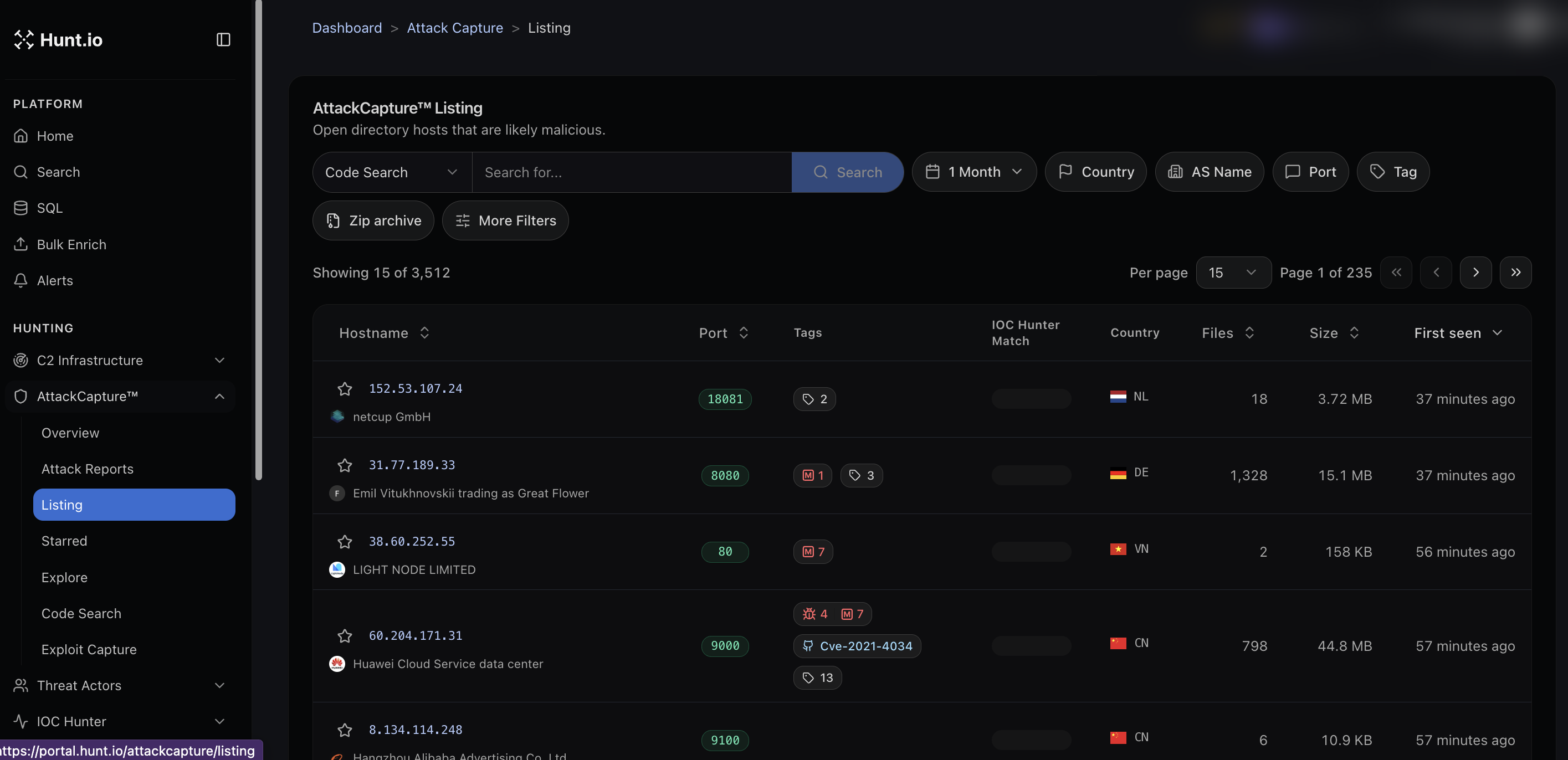
The Listing shows open directory hosts that are likely malicious. Each row carries the hostname and hosting org, the port, tags (including malware and CVE tags), whether there is an IOC Hunter match, the country, the file count, the total size, and when it was first seen. Filter by time window, country, AS name, port, or tag, and download a host as a zip archive.
Attack Reports
Direct URL: portal.hunt.io/attackcapture/reports.
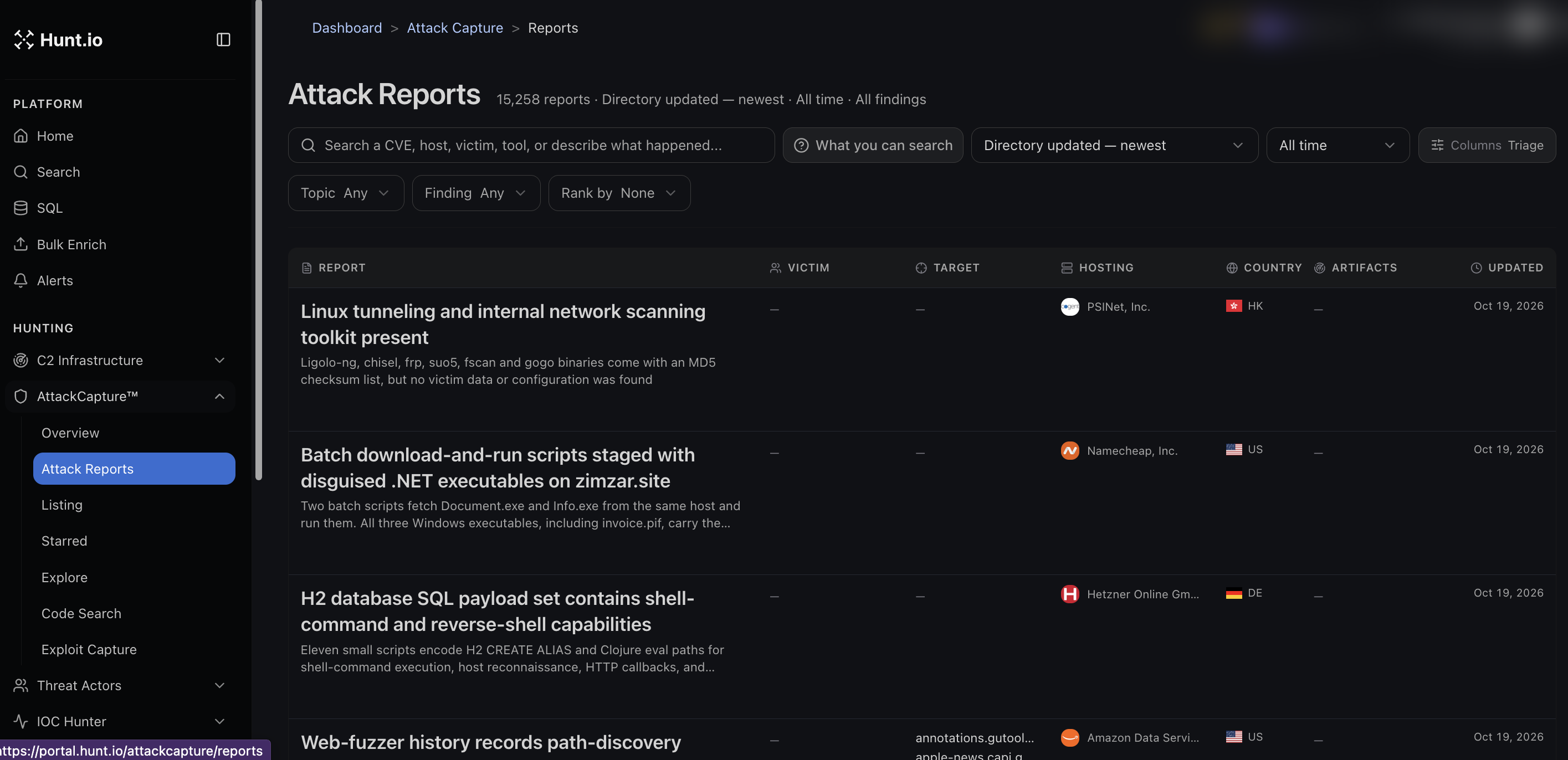
Attack Reports are written summaries of what was found on a host. Instead of reading a raw file list, you get a plain-language account of the tooling present and what it does, for example "Linux tunneling and internal network scanning toolkit present" or "Batch download-and-run scripts staged with disguised .NET executables." Search by CVE, host, victim, or tool, or describe what you are looking for, and filter by topic, finding, and time. Columns cover the victim, target, hosting, country, artifacts, and when the report was updated.
Code Search
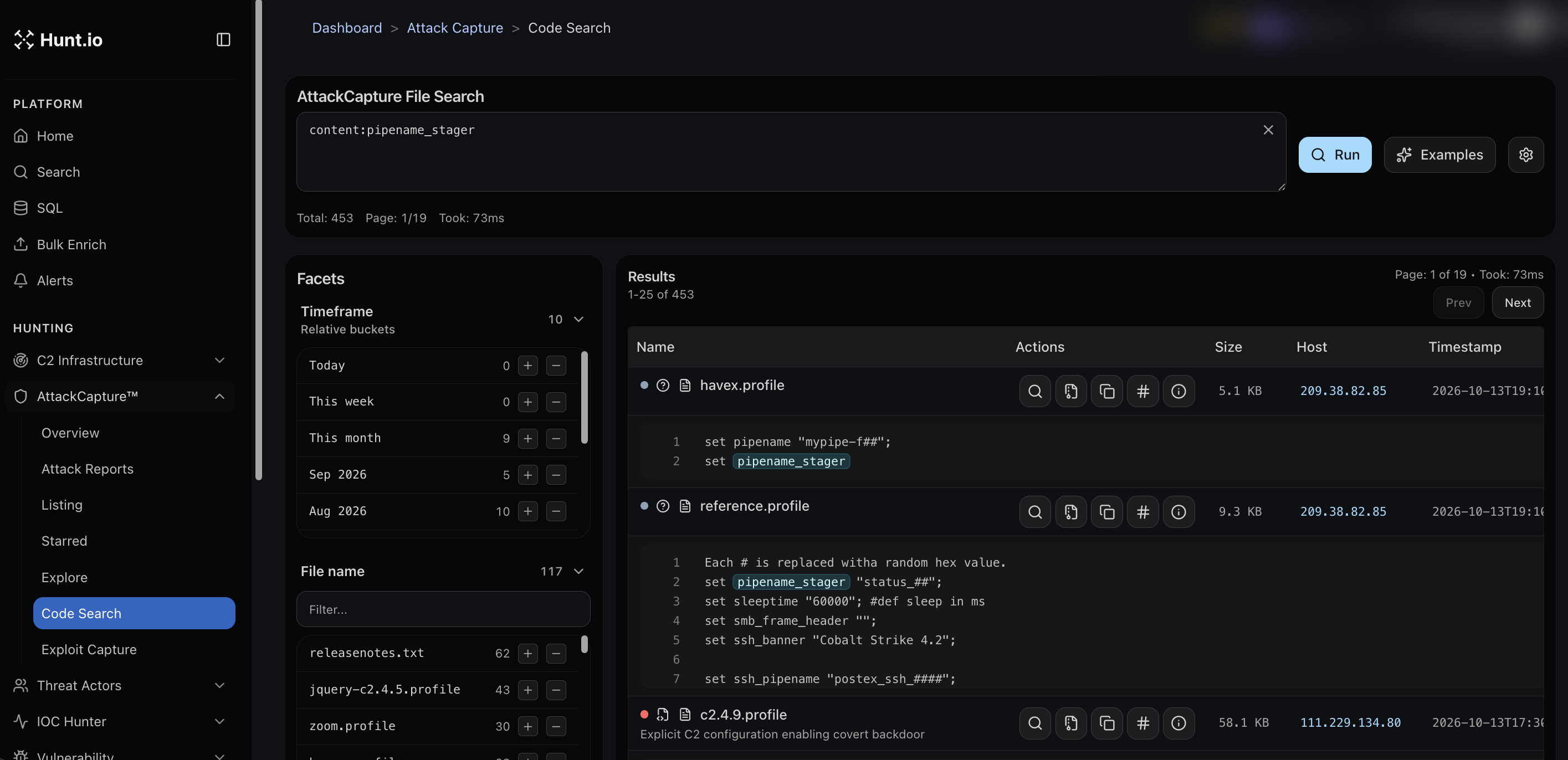
Code Search looks inside the collected files. Query by file content, for example
content:pipename_stager, and you get matching lines in context across thousands of files, with the host and timestamp for each hit. Facets on the left let you narrow by timeframe and file name, for example focusing on
.profile files. This is how you find a specific C2 configuration string, a named pipe, or a reused mutex across many hosts at once.
The other sections
Overview is the entry dashboard for AttackCapture.
Starred holds hosts you have flagged to come back to.
Explore is a browsing view into the dataset.
Exploit Capture focuses on exploit code found in directories.
Tags
Hosts and directories carry tags. Malicious tags are the high-signal ones. Github and exploit tags point at tooling and proof-of-concept code pulled from public sources. A count on a host means it has more than one tag, and you can open the count to see them all.
AttackCapture: Hunt Malicious Open Directories and Tooling
AttackCapture is Hunt.io's open directory intelligence. Attackers routinely leave their staging servers exposed, and those open directories hold malware, loaders, C2 profiles, exploit kits, and recon tooling. AttackCapture collects that content, flags the hosts that look malicious, and lets you search inside the files themselves.
This is the feature the old docs called Open Directory. It pairs closely with the rest of the platform: a captured host often maps to a C2 Infrastructure server or a known Malware family, carries CVE tags you can follow into Vulnerability, and shows up in IOC Hunter reporting. Save a search as a monitor in Alerts, or open any host in Search to pivot.
Open AttackCapture from the Hunting group in the sidebar. It has these sub-sections: Overview, Attack Reports, Listing, Starred, Explore, Code Search, and Exploit Capture.
Listing
Direct URL: portal.hunt.io/attackcapture/listing.
The Listing shows open directory hosts that are likely malicious. Each row carries the hostname and hosting org, the port, tags (including malware and CVE tags), whether there is an IOC Hunter match, the country, the file count, the total size, and when it was first seen. Filter by time window, country, AS name, port, or tag, and download a host as a zip archive.
Attack Reports
Direct URL: portal.hunt.io/attackcapture/reports.
Attack Reports are written summaries of what was found on a host. Instead of reading a raw file list, you get a plain-language account of the tooling present and what it does, for example "Linux tunneling and internal network scanning toolkit present" or "Batch download-and-run scripts staged with disguised .NET executables." Search by CVE, host, victim, or tool, or describe what you are looking for, and filter by topic, finding, and time. Columns cover the victim, target, hosting, country, artifacts, and when the report was updated.
Code Search
Code Search looks inside the collected files. Query by file content, for example
content:pipename_stager, and you get matching lines in context across thousands of files, with the host and timestamp for each hit. Facets on the left let you narrow by timeframe and file name, for example focusing on
.profile files. This is how you find a specific C2 configuration string, a named pipe, or a reused mutex across many hosts at once.
The other sections
Overview is the entry dashboard for AttackCapture.
Starred holds hosts you have flagged to come back to.
Explore is a browsing view into the dataset.
Exploit Capture focuses on exploit code found in directories.
Tags
Hosts and directories carry tags. Malicious tags are the high-signal ones. Github and exploit tags point at tooling and proof-of-concept code pulled from public sources. A count on a host means it has more than one tag, and you can open the count to see them all.
AttackCapture: Hunt Malicious Open Directories and Tooling
AttackCapture is Hunt.io's open directory intelligence. Attackers routinely leave their staging servers exposed, and those open directories hold malware, loaders, C2 profiles, exploit kits, and recon tooling. AttackCapture collects that content, flags the hosts that look malicious, and lets you search inside the files themselves.
This is the feature the old docs called Open Directory. It pairs closely with the rest of the platform: a captured host often maps to a C2 Infrastructure server or a known Malware family, carries CVE tags you can follow into Vulnerability, and shows up in IOC Hunter reporting. Save a search as a monitor in Alerts, or open any host in Search to pivot.
Open AttackCapture from the Hunting group in the sidebar. It has these sub-sections: Overview, Attack Reports, Listing, Starred, Explore, Code Search, and Exploit Capture.
Listing
Direct URL: portal.hunt.io/attackcapture/listing.
The Listing shows open directory hosts that are likely malicious. Each row carries the hostname and hosting org, the port, tags (including malware and CVE tags), whether there is an IOC Hunter match, the country, the file count, the total size, and when it was first seen. Filter by time window, country, AS name, port, or tag, and download a host as a zip archive.
Attack Reports
Direct URL: portal.hunt.io/attackcapture/reports.
Attack Reports are written summaries of what was found on a host. Instead of reading a raw file list, you get a plain-language account of the tooling present and what it does, for example "Linux tunneling and internal network scanning toolkit present" or "Batch download-and-run scripts staged with disguised .NET executables." Search by CVE, host, victim, or tool, or describe what you are looking for, and filter by topic, finding, and time. Columns cover the victim, target, hosting, country, artifacts, and when the report was updated.
Code Search
Code Search looks inside the collected files. Query by file content, for example
content:pipename_stager, and you get matching lines in context across thousands of files, with the host and timestamp for each hit. Facets on the left let you narrow by timeframe and file name, for example focusing on
.profile files. This is how you find a specific C2 configuration string, a named pipe, or a reused mutex across many hosts at once.
The other sections
Overview is the entry dashboard for AttackCapture.
Starred holds hosts you have flagged to come back to.
Explore is a browsing view into the dataset.
Exploit Capture focuses on exploit code found in directories.
Tags
Hosts and directories carry tags. Malicious tags are the high-signal ones. Github and exploit tags point at tooling and proof-of-concept code pulled from public sources. A count on a host means it has more than one tag, and you can open the count to see them all.
Frequently asked questions
Frequently asked questions
Can I download what was found?
How is AttackCapture different from a normal file search?
What are Attack Reports?
What is an open directory in this context?
Related
Related
Hunt adversary infrastructure in real time. Surface C2 servers, enrich IOCs,
and map attacker activity at scale with our unified threat hunting platform.

Hunt adversary infrastructure in real time. Surface C2 servers, enrich IOCs,
and map attacker activity at scale with our unified threat hunting platform.
Hunt adversary infrastructure in real time. Surface C2 servers, enrich IOCs,
and map attacker activity at scale with our unified threat hunting platform.